




How do I lock and unlock a note with a password?
Last updated
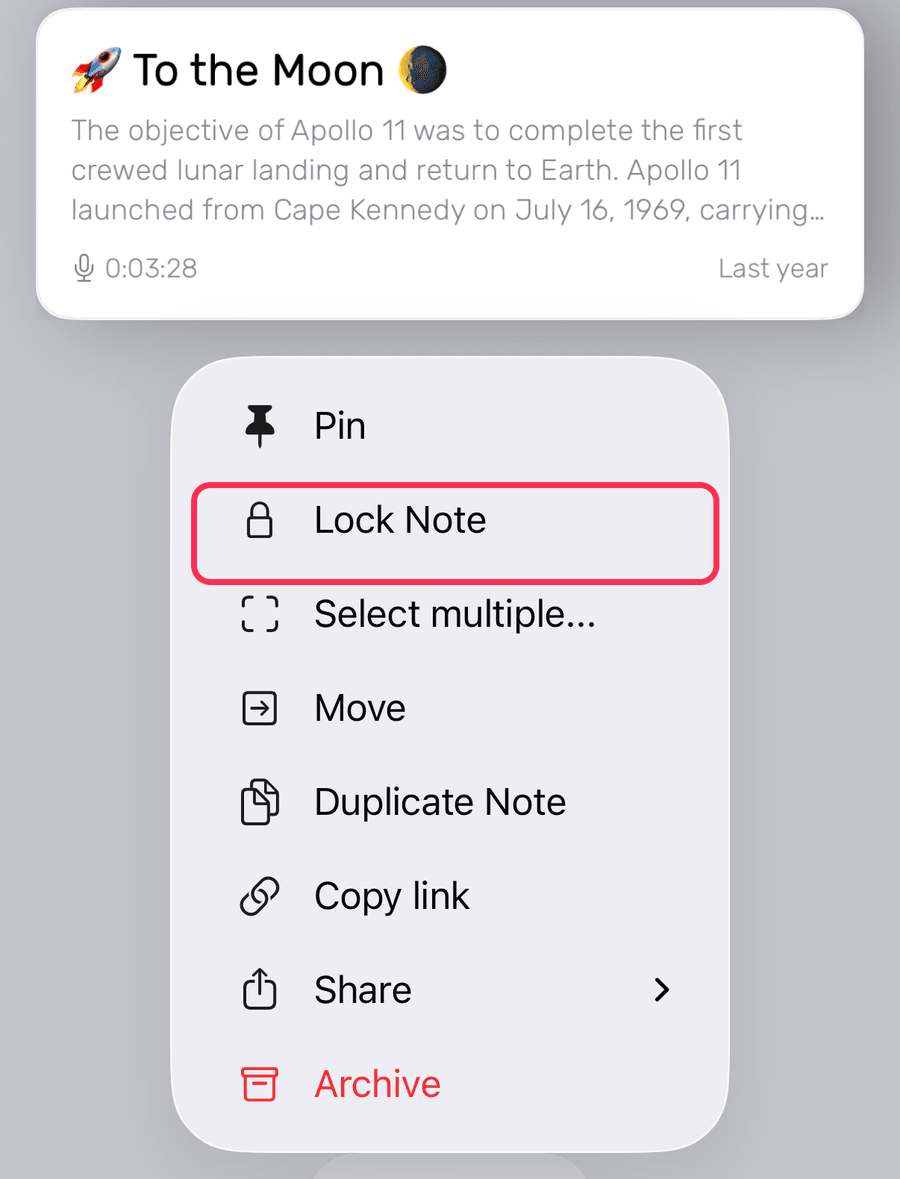
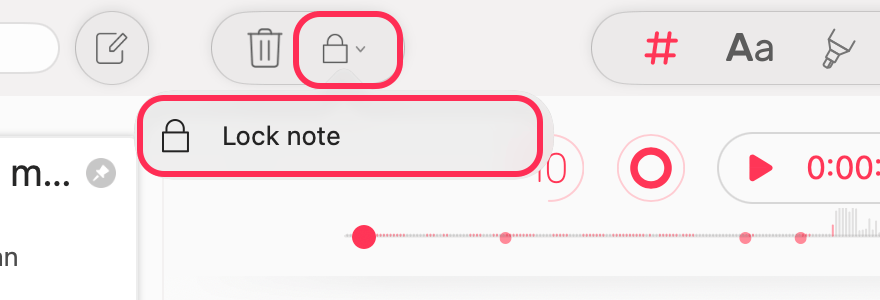
On iPhone and iPad, touch and hold the note and tap Lock Note, then set a password or turn on Face ID or Touch ID; on macOS, click the Lock icon next to the trash icon and choose Lock note. To unlock, touch and hold the note and tap Remove Lock. Lock status syncs to all your devices, and a forgotten password cannot be recovered. Using Your NotesShort answer
On iPhone and iPad, touch and hold the note and tap Lock Note, then set a password or turn on Face ID or Touch ID; on macOS, click the Lock icon next to the trash icon and choose Lock note. To unlock, touch and hold the note and tap Remove Lock. Lock status syncs to all your devices, and a forgotten password cannot be recovered.
Protect your private notes with Noted’s Lock Notes feature! Secure sensitive information using Face ID, Touch ID, or a passcode on iOS & macOS.
Lock a Note For the First Time
iOS
1. Touch and hold the note, then tap Lock Note.
2. When prompted, set a one-time password or enable Face ID/Touch ID for quick access (if available).
To turn Face ID/Touch ID on or off, or change your password, go to Settings → General → Lock notes.
macOS
1. Click on the note you want to lock.
2. Click the Lock icon next to the trash icon and choose Lock note, or right-click the note and select Lock from the drop-down menu.
3. When prompted, use Touch ID or enter your password to lock the note.
Remove a Lock
iOS
1. Touch and hold the locked note, then tap Remove Lock
2. Enter your password or use Face ID/Touch ID to unlock your note
Note: when you unlock one note, all notes remain accessible until you manually lock them or until automatic locking occurs.
Your notes will automatically lock when you:
– Close and restart the app
– Lock or reboot your device
– Leave the app in the background for more than 30 seconds
To lock all your notes again straight away, tap the 🔒 at the top of the notes list.
macOS
1. Click on the locked note you want to unlock
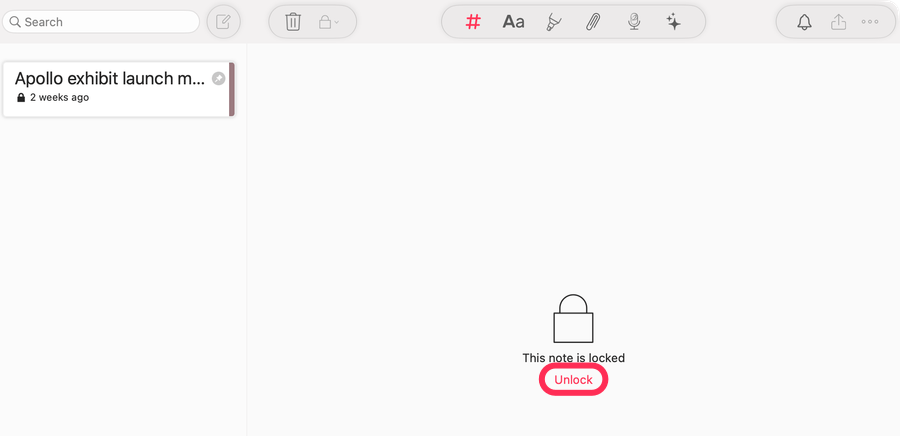
2. Click the word Unlock, or right-click the note and select Remove Lock from the drop-down menu
3. When prompted, use Touch ID or enter your password to unlock the note.
You can reset your password or deactivate Touch ID in Settings > General.
Noted Security FAQ
Can Noted see my notes?
No. Your data is encrypted and stored securely on your Apple device and Apple’s iCloud server (if sync is enabled). We cannot access your notes.
What if I forget my password?
We cannot help recover locked notes if you forget your password. Always add a password hint when creating a new password.
How does locking work across my devices?
Lock status syncs instantly. When you lock a note on your iPhone, the same password protection applies immediately to that note on your iPad, Mac, and other devices.
What if my other device doesn’t have Touch ID/Face ID?
We’ll ask for your password instead.
Why isn’t Touch ID/Face ID working?
Check that you’ve allowed Noted to access Touch ID/Face ID in your iOS settings (Settings > Touch ID/Face ID & Password). Once enabled, Noted will use biometric authentication instead of passwords until manually disabled.
Reset a Lost or Forgotten Password (for Mac user only)
Since there’s no direct way to reset your Noted password, we strongly recommend adding a password hint when creating a new password.
However, if you’re a Mac user, you may be able to retrieve or change your password using iCloud Keychain. Here’s how:
- Open Keychain Access on your Mac.
- Search for com.digitalworkroom.noted.
- Locate the item labeled password and double-click it.
- Click Show Password (you may need to enter your Mac password).
🔹 Make sure iCloud Keychain is enabled on all your devices to sync any changes across them.
⚠️ If you can’t recover your password, you won’t be able to access previously locked notes.