




How do I record an audio note?
Last updated
Open a note and tap the red Record button at the top, then type as you listen: every line is timestamped to the audio. Tap it again to stop. There's no time limit beyond your device's storage, and recording carries on with the screen locked or while you use other apps. Record & PlaybackShort answer
Open a note and tap the red Record button at the top, then type as you listen: every line is timestamped to the audio. Tap it again to stop. There's no time limit beyond your device's storage, and recording carries on with the screen locked or while you use other apps.
The quickest way to capture an idea or a meeting is to record an audio note. Open a note and tap Record at the top. That’s it. Type as you listen, and every line you write is timestamped to that moment in the audio.
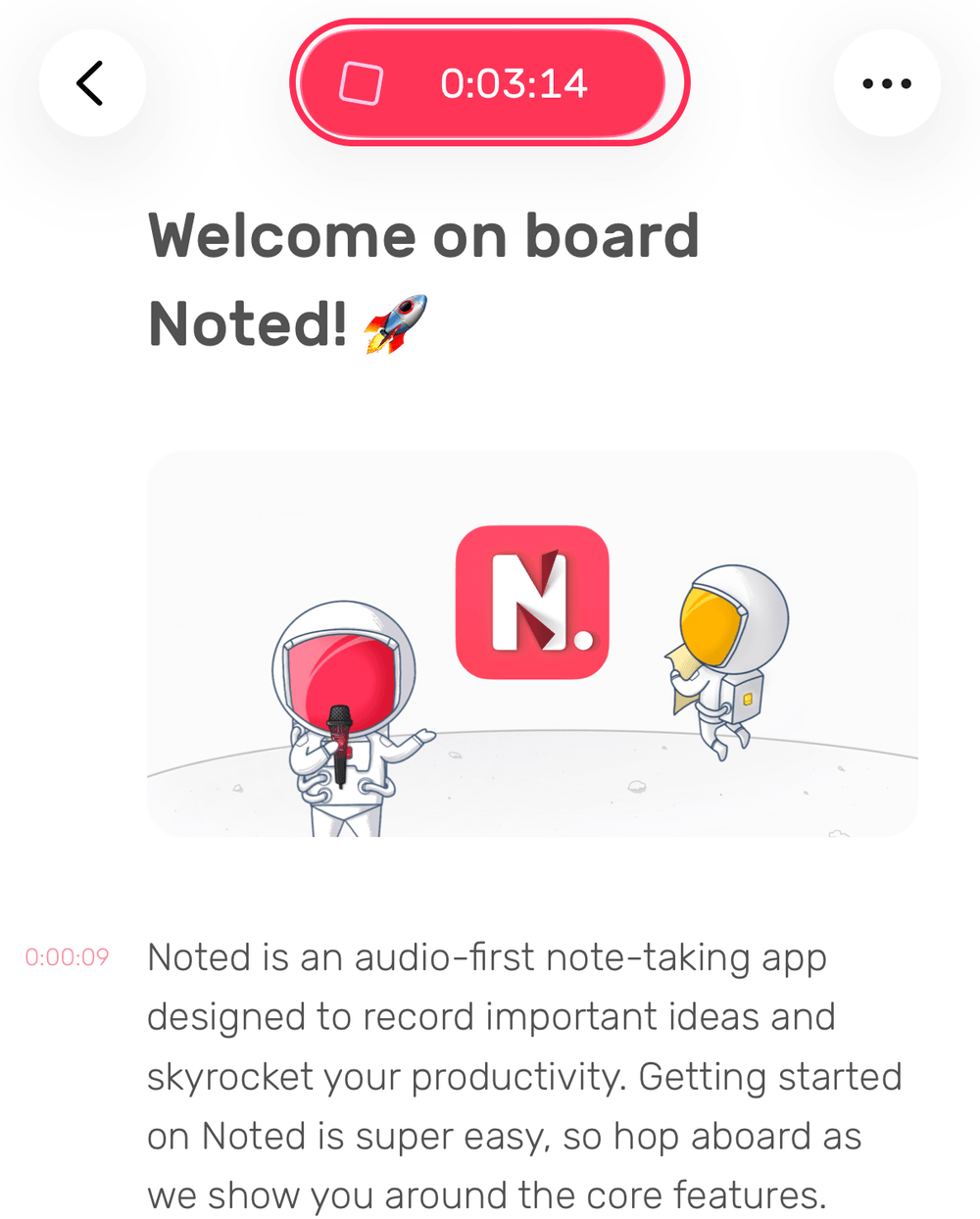
To stop, tap the red button again.
How long can I record?
There’s no time limit; it depends only on your device’s storage. If you sync with iCloud, make sure you have enough iCloud storage for your recordings too.
To save space, lower the recording quality: Settings → Record & Playback → Recording quality on iPhone and iPad, or Settings → Record on Mac. This applies to new recordings only.
Does it keep recording if I lock my phone?
Yes. Recording continues with the screen locked or while you use other apps.
Location awareness recording (iPhone)
Have you ever started recording in a conference room or a lecture hall, then forgotten to stop when you left? Noted can detect when you leave the place where you started recording and send you a notification to remind you that you’re still recording.
To turn it on, go to Settings → Notifications → Location awareness recording.
Can I carry on recording after I’ve stopped?
Yes. In the latest recording of a note, tap the red record button to the left of the playback controls and recording resumes where it left off. On a Mac, click Resume.
Can Noted transcribe while I record?
Yes, on iOS 26, iPadOS 26 and macOS 26. See How do I use live transcription?