




How do I record an audio note on Apple Watch?
Last updated
Open Noted on your Apple Watch and tap the red Record button. Tap the # button to add a #TimeTag while recording. The recording transfers to your iPhone automatically when the two are nearby. Apple WatchShort answer
Open Noted on your Apple Watch and tap the red Record button. Tap the # button to add a #TimeTag while recording. The recording transfers to your iPhone automatically when the two are nearby.
Whether you want to make a note of a reading list item or capture an idea on your way to the office, using your Apple Watch to record notes makes perfect sense because it’s right on your wrist.
Here’s how to start recording an audio note on the go:
- Fire up Noted on your Apple Watch.
- Tap the red Record button to start recording.
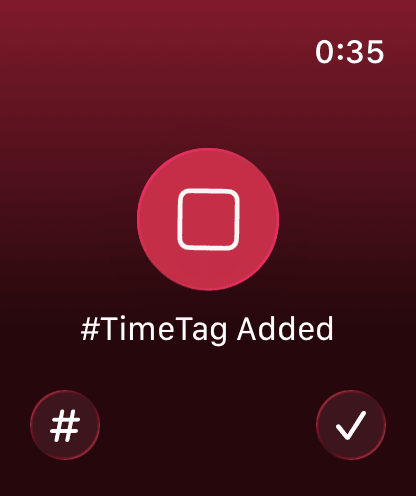
To add a #TimeTag to the recording: Tap #
To pause the recording: Tap the rotating square
To resume recording: Tap the red button again
To save the recording: Tap the ✓ once you’re done recording.
Once the recording is saved, you can find it on your Watch in the Recordings screen and on your iPhone in the Watch tab.