




How do I highlight text in a note?
Last updated
Select the text, tap Aa on the editor toolbar, then tap the highlighter and pick a colour. To remove a highlight, select it and choose Clear, or tap Undo straight after. EditorShort answer
Select the text, tap Aa on the editor toolbar, then tap the highlighter and pick a colour. To remove a highlight, select it and choose Clear, or tap Undo straight after.
Make your notes stand out with Noted’s Highlight tool. Just select the text and hit Highlight. It’ll instantly make everything you highlight neat and tidy. And if you change your mind, you can easily undo or remove the highlighting. Easy-peasy!
Highlight Text
iOS
1. Select the text: double-tap for a word, or hold and drag to select more
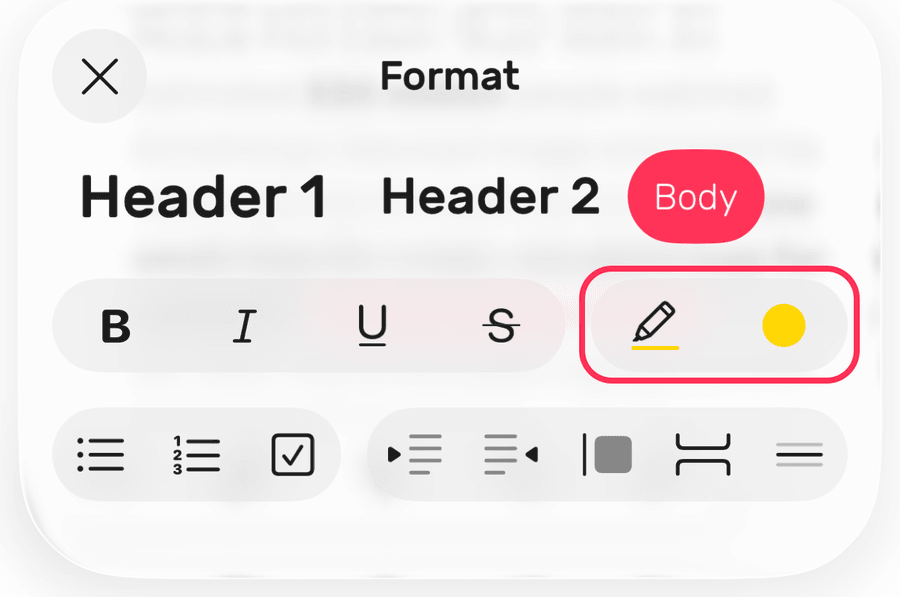
2. Tap Aa on the editor toolbar
3. Tap the highlighter, then choose a colour
macOS
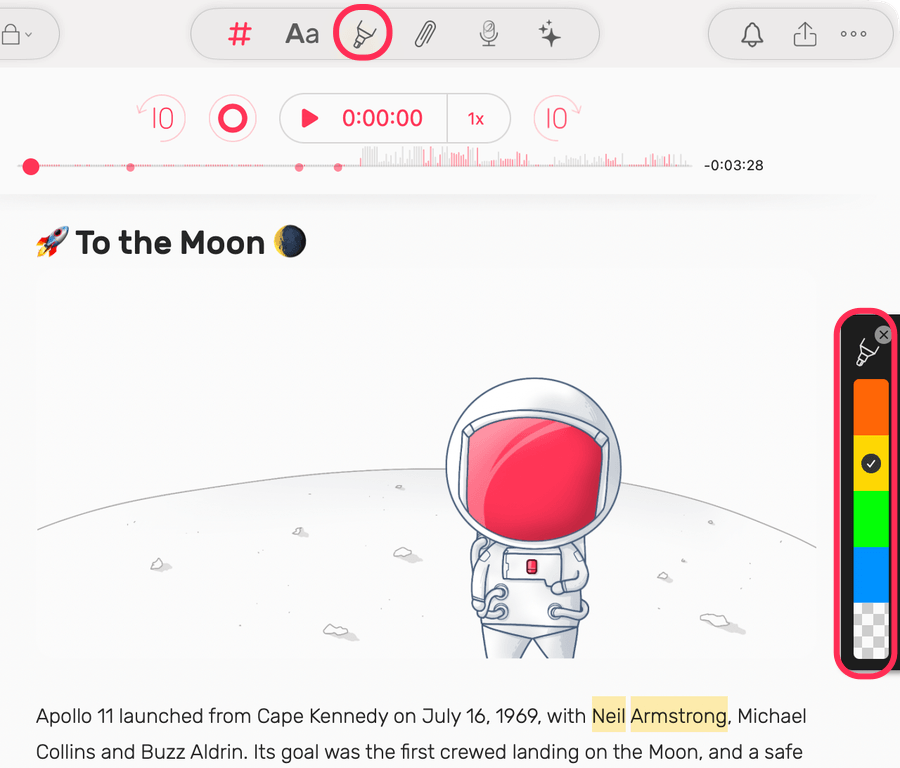
1. Click the Highlight tool in the Editor Toolbar
2. Choose a colour from the palette at the right of the note
3. Select the text: double-click for a word, or click and drag for more
💡 Bonus Tip:
1. Double-click a word to instantly highlight or remove it.
2. Triple-click to apply or remove highlights for an entire paragraph.
Erase Highlighting
iOS
For recent highlights, tap Undo on the editor toolbar.
Remove manually:
1. Select the highlighted part: double-tap for one word, or hold and drag for more
2. Tap Aa on the editor toolbar
3. Choose Clear from the colour menu
macOS
Undo recent highlights:
Press Command + Z or select Undo
Remove manually:
1. Click the Highlight tool in the Editor Toolbar
2. Choose Clear, the chequered swatch at the bottom of the palette
3. Select the highlighted text
Bonus tip: Triple-click to remove the highlights for the whole paragraph.