





Great ideas can strike anywhere at any time. However, these ideas can go just as easily as they come. We tend to forget most of our thoughts so it only makes sense to capture them immediately, and that’s precisely what the Noted Apple Watch app is designed for.
What is Noted on Apple Watch
Noted Apple Watch app is your most reliable note-taking and idea-capturing companion. It offers a quick and easy way to take audio notes: just one tap on the Record button and you can start capturing your ideas using your voice. You can also add #TimeTags to your notes whilst recording, which will help you review the notes afterwards.
Once you finish recording, the audio notes are automatically transferred to your iPhone, where you can transcribe them into written notes – plus so much more.
Why You Need Noted on Your Apple Watch
No matter how confident you are in your memory, taking notes using your Apple Watch can help you keep hold of every flash of inspiration and passing thought. You might want to record some ideas en-route to the office or jot down a few key points for an assignment on the go, and the best way to do it is using Noted on Apple Watch.
How to Get Started With Noted on Apple Watch
1. Download Noted
Before we start, make sure your iPhone is on iOS 17 or later.
To install Noted on your Apple Watch:
- Open the Apple Watch app on your iPhone.
- Tap My Watch.
- Scroll down to the Available Apps section.
- Tap the Install button next to Noted.
2. Record and Playback Notes
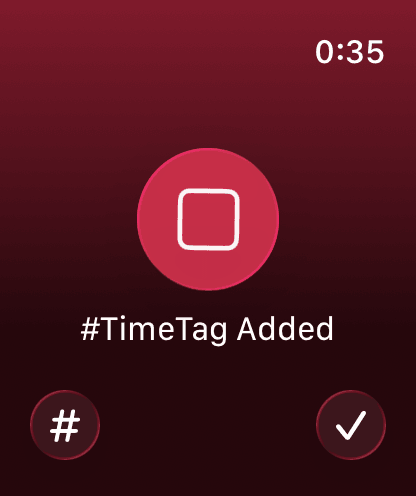
The app interface is very simple, with a Record button and your recordings, because our sole focus is to help you take audio notes. As you’re recording, you can tap the # button to add a #TimeTag to mark key points.
Your recordings are listed on the app’s main screen. Tap a recording to play it back from your Watch, or open the Watch tab on your iPhone and listen to them there.
3. Append a Recording to a Note
Once your recordings are fully transferred to your iPhone, you can append them to notes following these steps:
- Open the Watch tab on your iPhone.
- Tap the recording you wish to append and select Append to note.
- Select the notebook and note (or create a new notebook and note) you wish to append the recording to, then tap Append.
Any hashtags you added to the recording will be transferred to the note.
Explore Noted on Apple Watch today!
There’s so much more that Noted can do straight from your wrist, you can also share Watch recordings from the Watch tab on your iPhone (touch and hold a recording, then tap Share to send it to your Mac with AirDrop, for example), as well as resend and delete them.
For more useful note-taking hacks like this, be sure to sign up for our newsletter and follow us on Instagram, X, and LinkedIn!